Setup #
Click on the SMART menu and select SMARTcompanyinfo and Setup. Or Search for SMARTcompanyinfo Setup.
Default setting #
As a default, empty fields on the debtor card, Vendor card, and contact card are automatically filled in using data from cvr.dk.
The following fields are automatically filled in if they are empty:
- Name
- Address 1
- Address 2
- City
- Postal code
- Phone number
If you do not want empty fields to be updated, it can be deactivated in the "Update Data" section.

Note
Automatic updating of empty fields occurs. If the content in a field is deleted, there is an automatic check to see if information is available via cvr.dk, and if it is, the field is automatically filled in.
Data Cleaning #
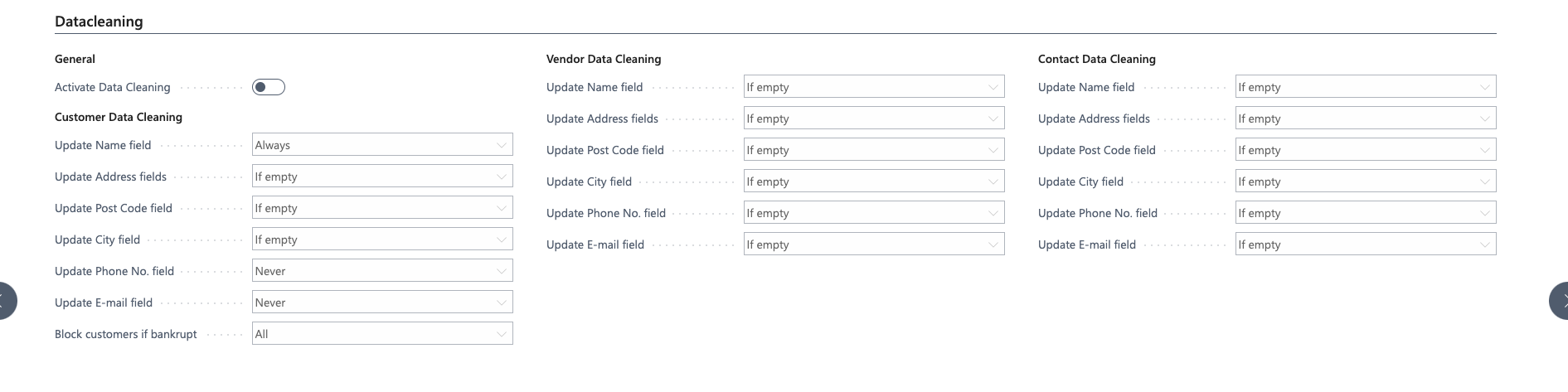
By activating Data Cleaning, you can ensure that master data on debtors, creditors, and contacts is always 100% updated and matches the information reported to cvr.dk.
To activate Data Cleaning, you need to click on "Enable Data Cleaning."
Tip
Data cleaning can be deactivated on a per-debtor/creditor basis, ensuring that individual customers are not affected by master data updates. This is managed directly from the debtor/creditor card.
Choose update type #
In the Data Wash section, you can control, on a per-field basis, whether and when a field should be updated.
You can choose between: "Always," "If empty," or "Never."
Note
If the "Always" option is chosen, data will be automatically updated if it does not match the information from cvr.dk. For example, if the company name in Business Central is "MyCompany" and it is listed as "MyCompany A/S" on cvr.dk, the name will be changed to "MyCompany A/S".